Theme Builder
What is WPBits Theme Builder?
Section titled “What is WPBits Theme Builder?”WPBits Theme Builder is a tool that lets you change the header, footer, archive, single post, and many other components that are managed and styled by your currently active theme. For example, you can use Elementor builder to build a new template that contains your site logo, site navigation, etc., then use it as the header design of your website.
Creating Location Templates
Section titled “Creating Location Templates”-
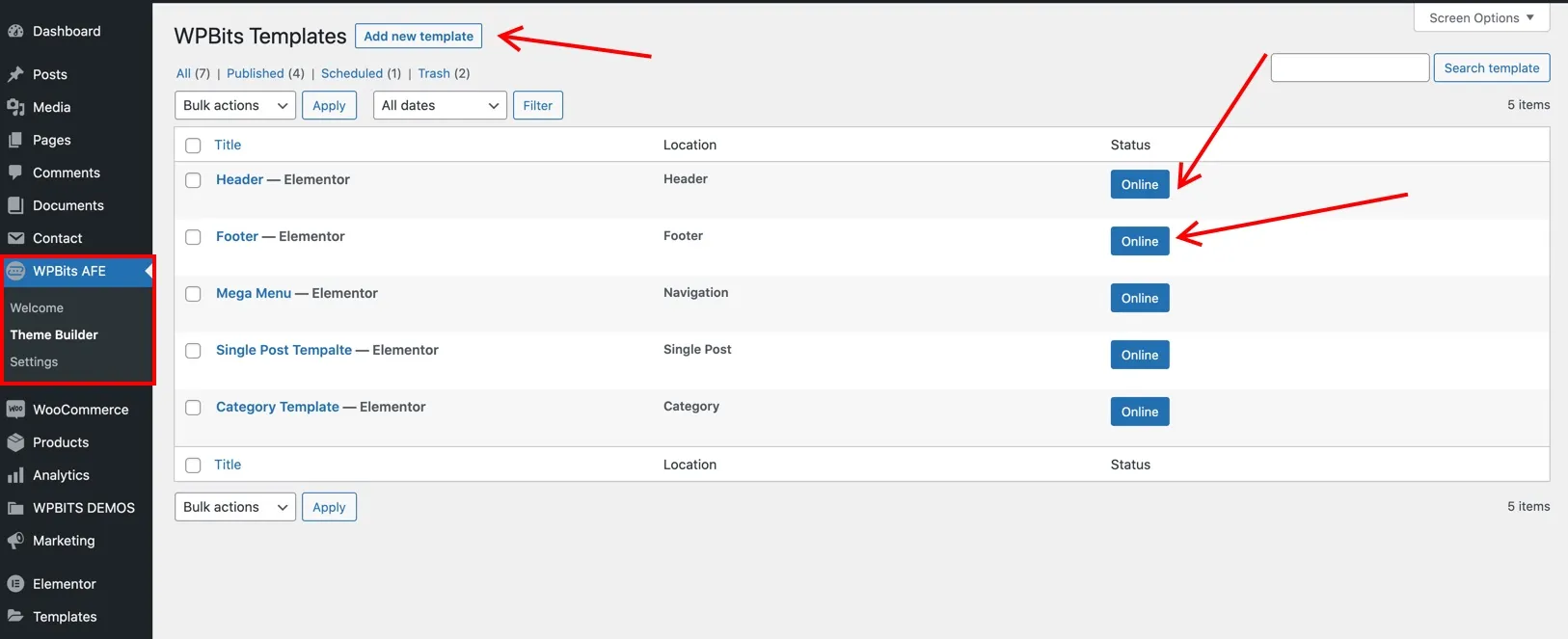
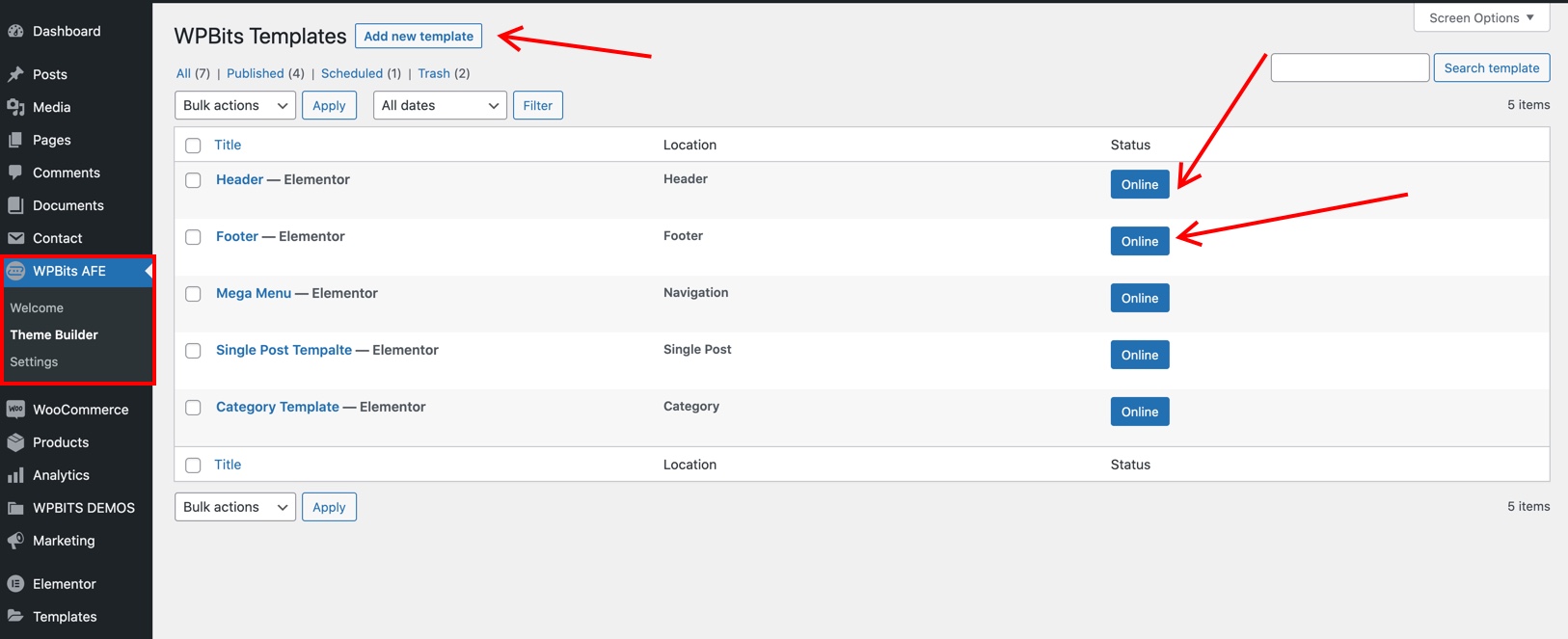
Open WPBits AFE / Theme Builder screen.
-
Click the “Add new template” button.
-
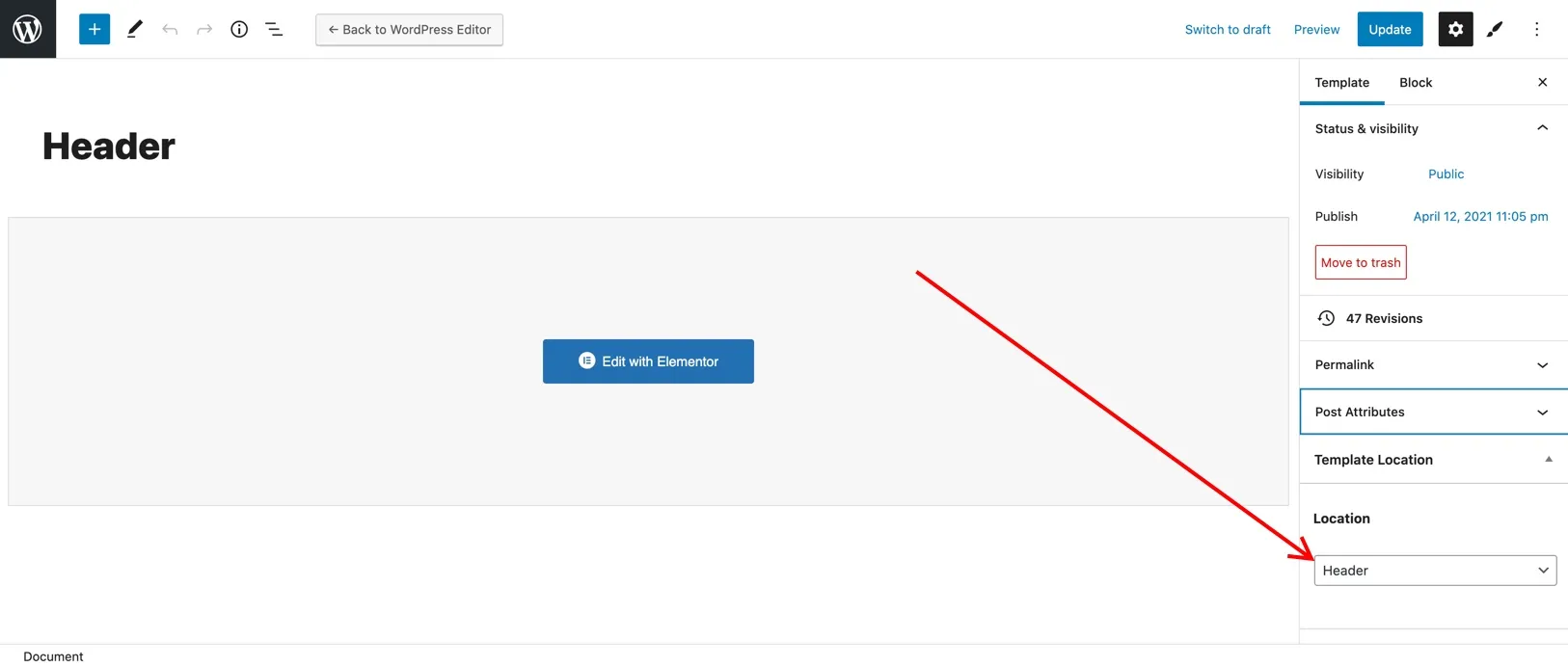
Select the location of the template. Click the “Edit With Elementor” button.
-
Use Elementor widgets and sections to design your template. There are some widgets created specifically to use with the theme builder. These widgets are:
- [WPBits] Breadcrumb
- [WPBits] Post content
- [WPBits] Post title
- [WPBits] Archive title
- [WPBits] Archive description
- [WPBits] Site logo
- [WPBits] Site navigation
Creating Header / Footer Templates
Section titled “Creating Header / Footer Templates”-
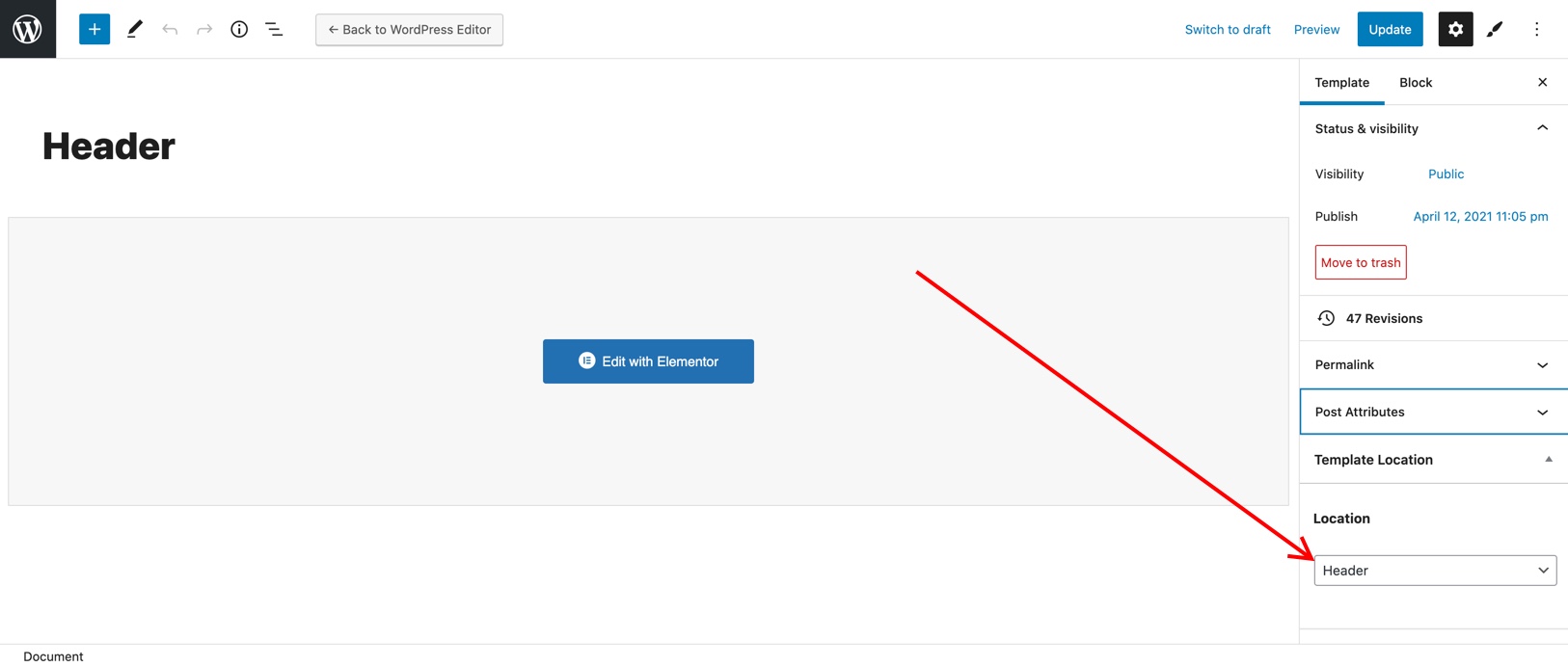
Create a new template and assign it to the Header location.
-
Edit the new template with Elementor by clicking the “Edit with Elementor” button.
-
Use Elementor widgets and sections to design your template. There are some widgets created specifically to use with the theme builder. These widgets are:
- [WPBits] Breadcrumb
- [WPBits] Post content
- [WPBits] Post title
- [WPBits] Archive title
- [WPBits] Archive description
- [WPBits] Site logo
- [WPBits] Site navigation
Pre-built Header Templates
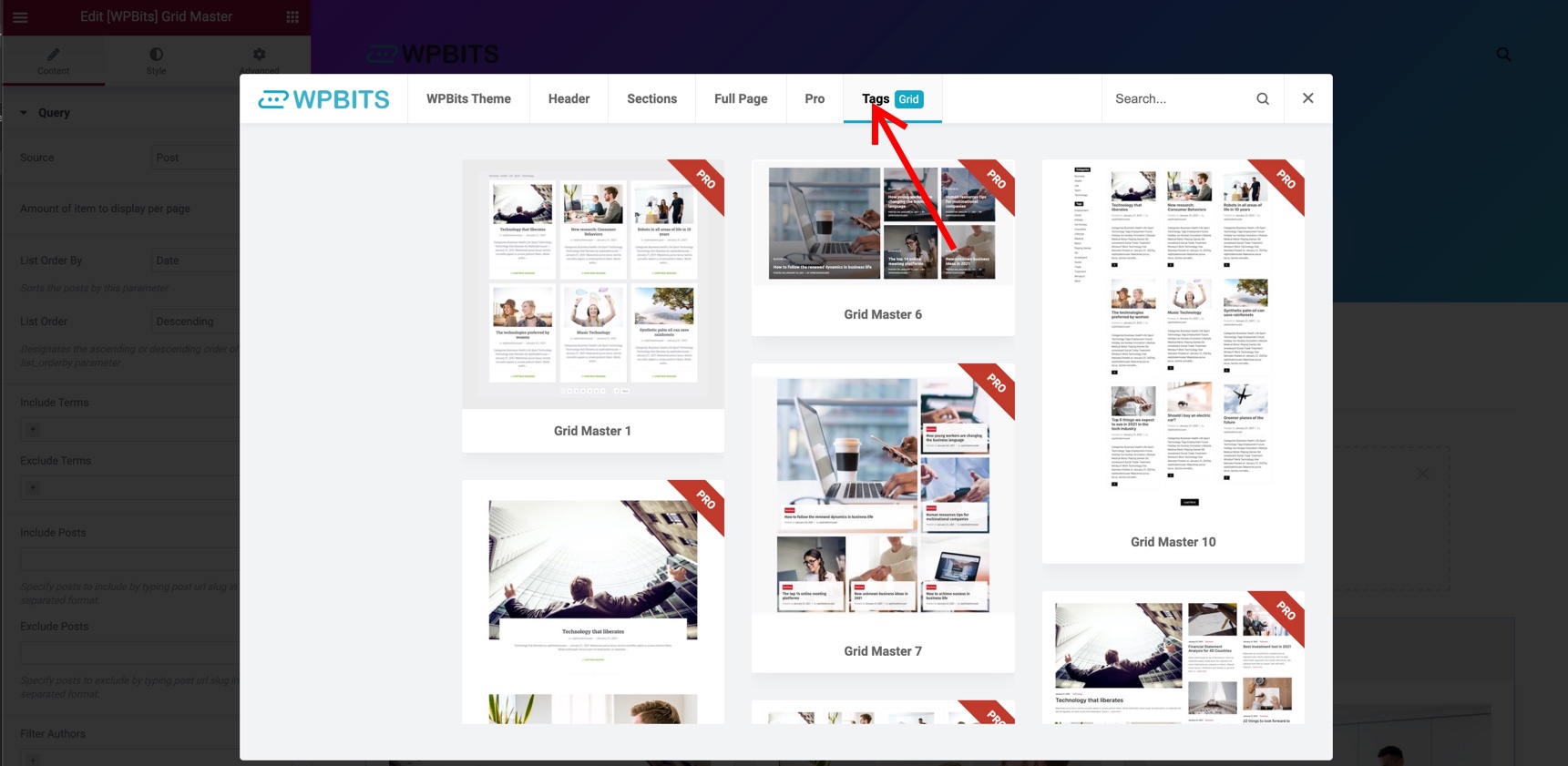
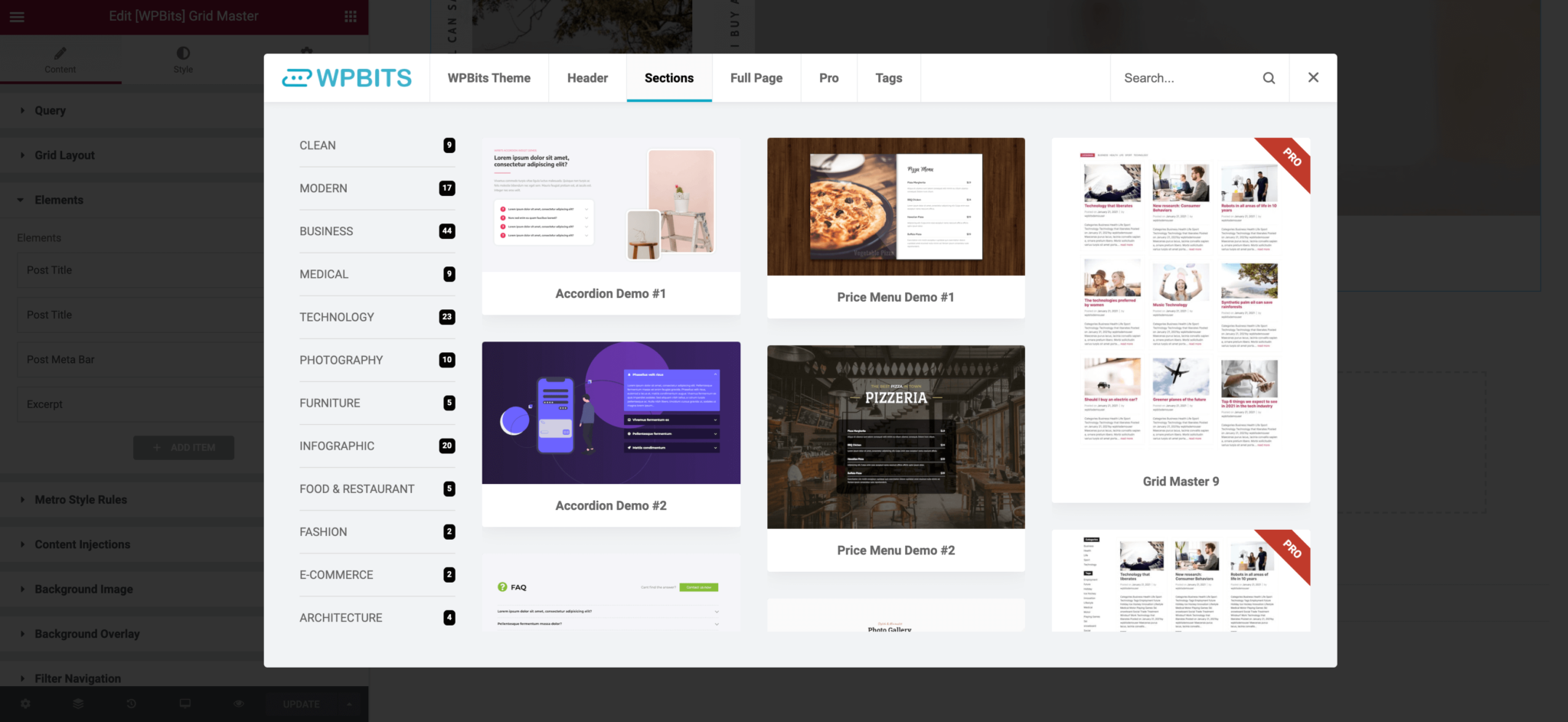
Section titled “Pre-built Header Templates”You can also use the WPBits Template Library to import pre-built header templates for a quick start. Click on the WPBits logo on a new section toolbar to access the library.

Creating Archive Templates
Section titled “Creating Archive Templates”If you want to change the design of your category, archive, tag, search result, etc. pages, then you can use the WPBits Theme Builder and the WPBits Grid Master together.
-
Open WPBits AFE / Theme Builder screen.
-
Click the “Add new template” button.
-
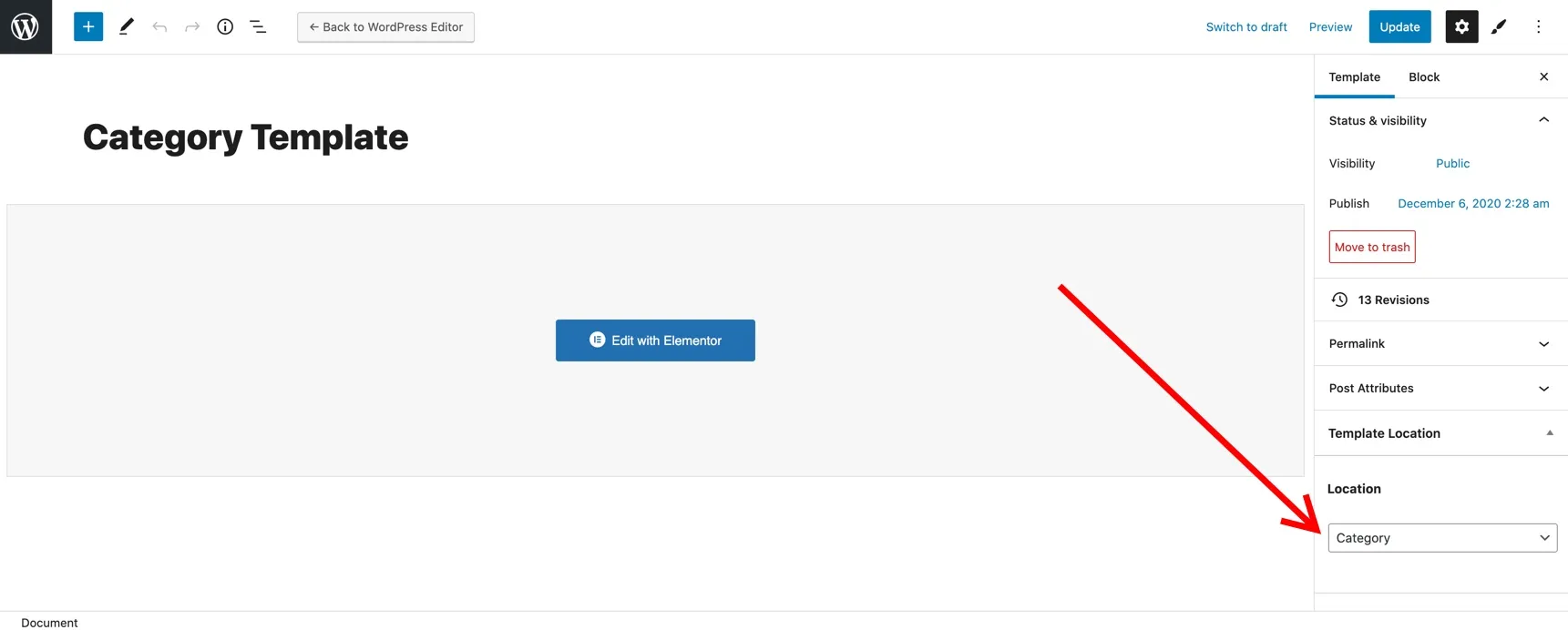
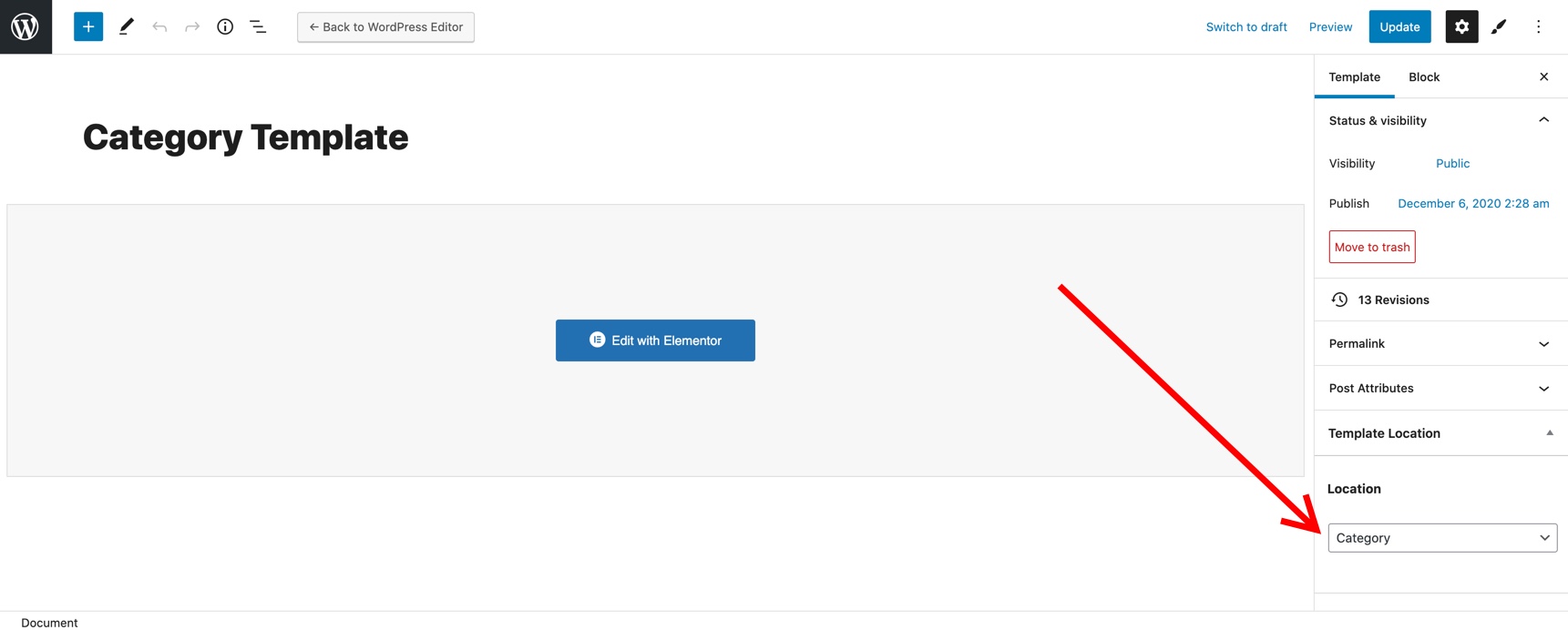
Select the location of the template. Click the “Edit With Elementor” button.
-
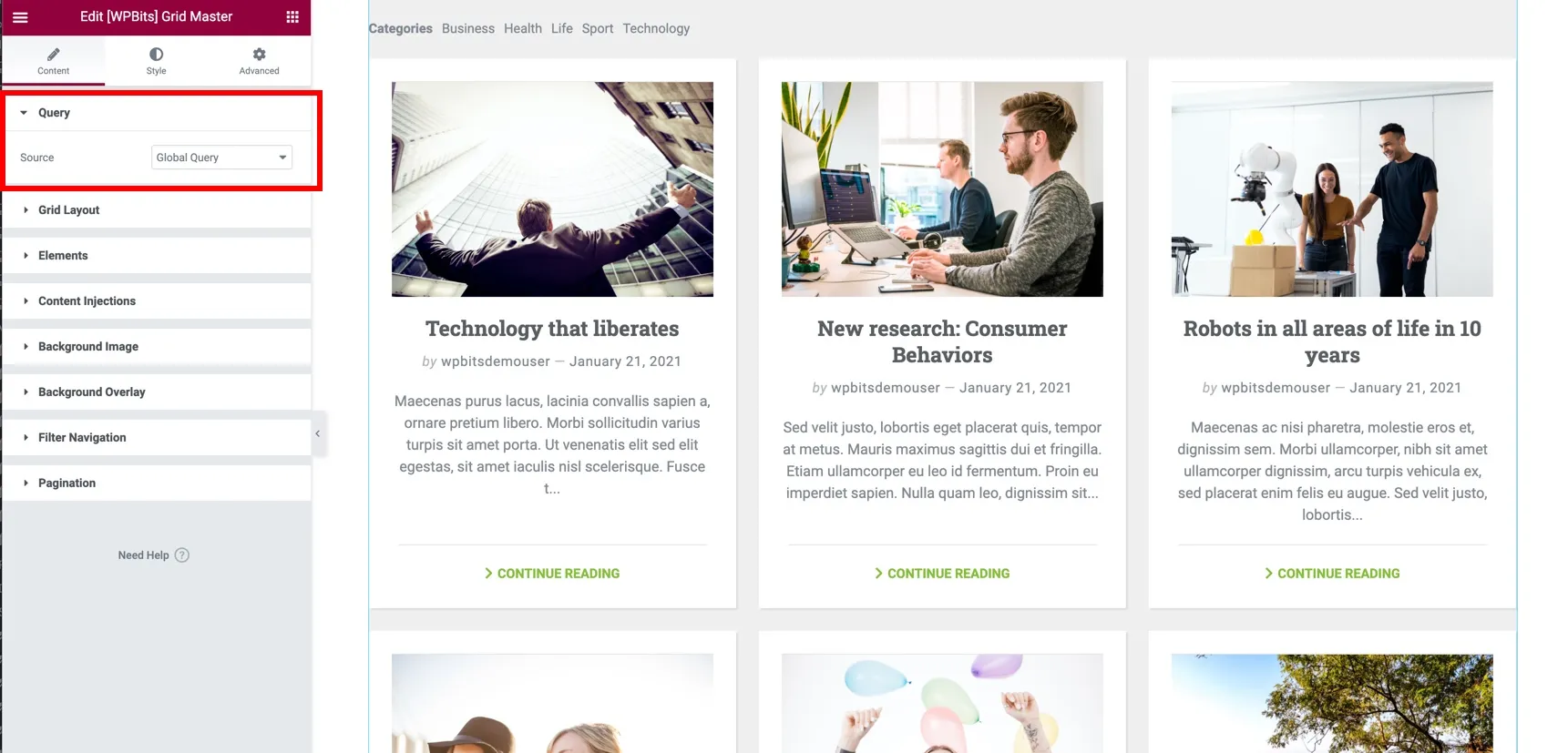
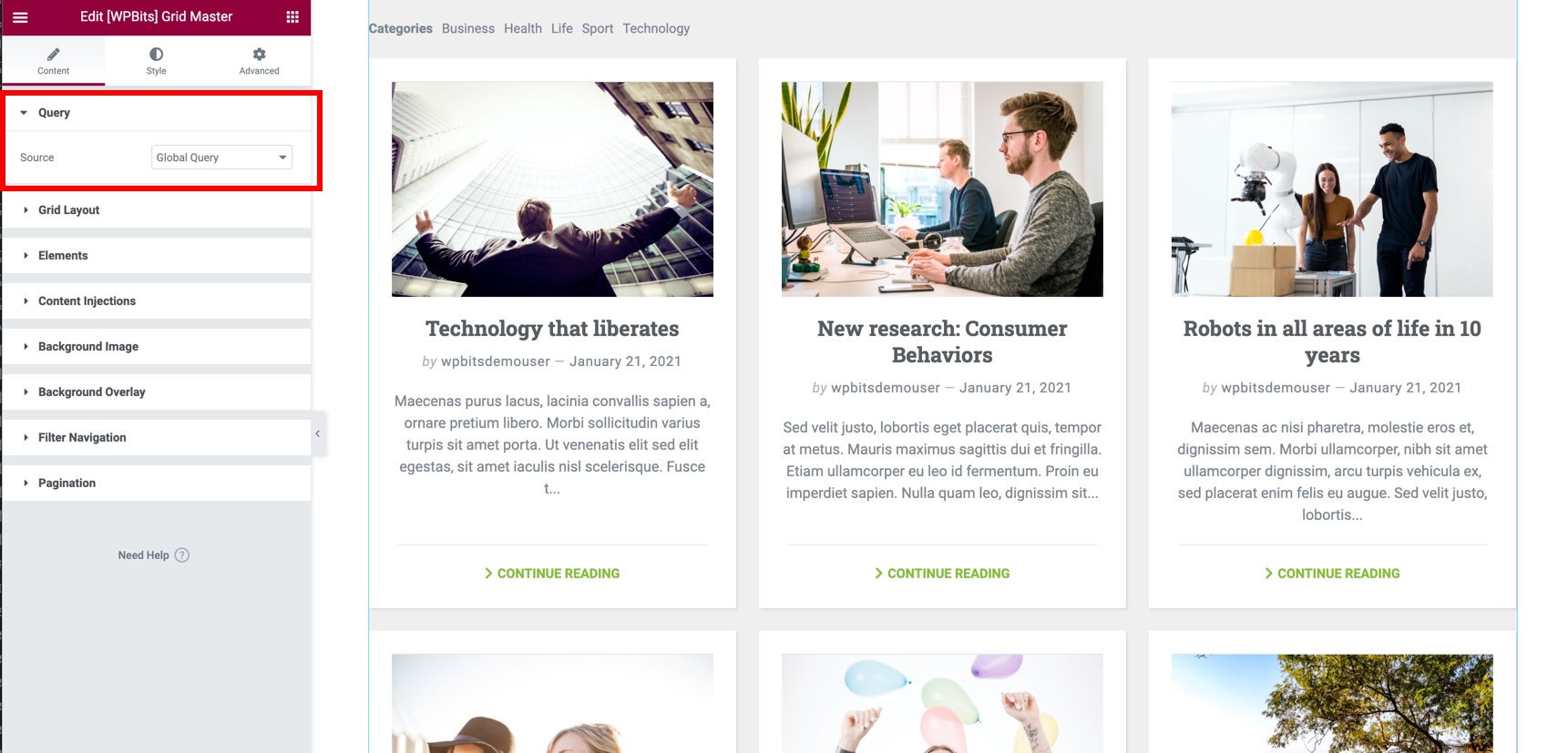
Add a Grid Master to your template and select Global Query option as the Query. You can visit the Grid Master section to learn more about the widget.
Pre-built Grid Templates
Section titled “Pre-built Grid Templates”You can also use the WPBits Template Library to import pre-built grid templates for a quick start. Click on the WPBits logo on a new section toolbar to access the library.