

Widgets
WPBits provides over 40 widgets that seamlessly integrate with Elementor’s page builder interface. This guide explains how to access and use these widgets in your projects.
Accessing WPBits Widgets
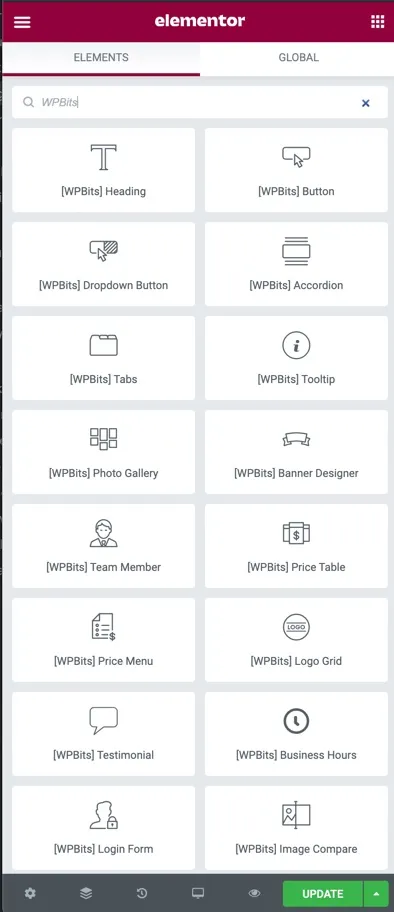
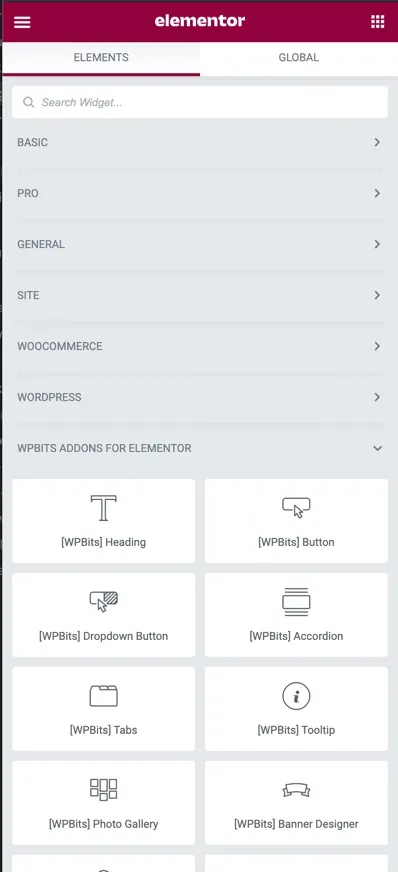
Section titled “Accessing WPBits Widgets”- Open a page or post in Elementor editor
- Look for the Elements Panel on the left side
- WPBits widgets are labeled with [WPBits] prefix
- Drag and drop any widget onto your page
- Configure the widget settings in the left panel
Using Widgets
Section titled “Using Widgets”Basic Workflow
Section titled “Basic Workflow”- Add Widget: Drag the widget from the Elements Panel to your page
- Configure Content: Edit the widget content in the Content tab
- Style Widget: Customize appearance in the Style tab
- Advanced Settings: Fine-tune behavior in the Advanced tab
Widget Settings
Section titled “Widget Settings”Each widget typically includes:
- Content Tab: Widget-specific content and data
- Style Tab: Visual styling options (colors, typography, spacing)
- Advanced Tab: Additional effects, responsive settings, custom CSS