

Template Library
The Template Library is a powerful feature within WPBits Addons for Elementor that allows you to import professionally designed page templates directly into your projects, dramatically speeding up your development workflow.
Overview
Section titled “Overview”The Template Library provides ready-to-use layouts for various page types, including headers, footers, grids, and complete page sections. These templates are professionally designed and fully customizable using Elementor.
How to Access the Template Library
Section titled “How to Access the Template Library”Step 1: Locate the WPBits Logo
Section titled “Step 1: Locate the WPBits Logo”- Open a page in Elementor editor
- Find the WPBits logo in Elementor’s startup section
- Click the logo to open the Template Library

Step 2: Browse Templates
Section titled “Step 2: Browse Templates”- Browse through the available template categories
- Preview templates by clicking on them
- Filter templates by type or category
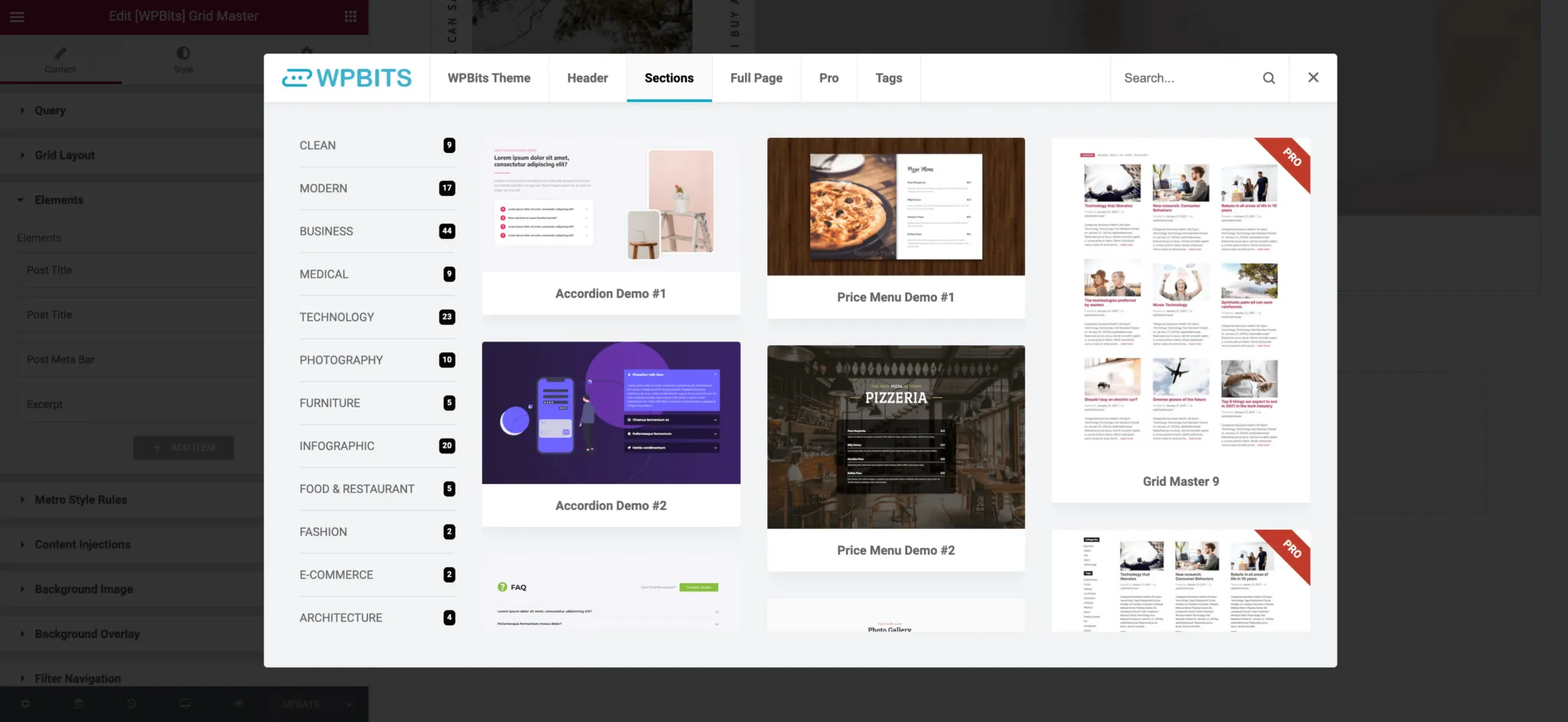
Step 3: Import a Template
Section titled “Step 3: Import a Template”- Click on your desired template
- Click the Import button
- The template will be inserted into your page
- Customize the template to match your needs
Available Template Types
Section titled “Available Template Types”Page Sections
Section titled “Page Sections”- Hero sections
- Feature sections
- Testimonial sections
- Call-to-action sections
- Footer sections
Complete Pages
Section titled “Complete Pages”- Homepage layouts
- About page templates
- Service page designs
- Contact page layouts
Headers & Footers
Section titled “Headers & Footers”- Header designs (Pro version)
- Footer layouts (Pro version)
Grid Layouts
Section titled “Grid Layouts”- Post grids
- Product grids (WooCommerce)
- Portfolio grids
Customizing Templates
Section titled “Customizing Templates”After importing a template:
- Edit Content: Replace placeholder text and images with your own
- Adjust Colors: Match your brand colors using Elementor’s style controls
- Modify Layout: Rearrange sections or columns as needed
- Add Widgets: Insert additional WPBits widgets for more functionality
- Responsive Settings: Fine-tune mobile and tablet displays
Benefits of Using Templates
Section titled “Benefits of Using Templates”- Save Time: Start with professional designs instead of building from scratch
- Learn Best Practices: Study how templates are structured
- Maintain Consistency: Use similar layouts across multiple pages
- Professional Results: Leverage expert design patterns
Pro Template Features
Section titled “Pro Template Features”The Pro version includes additional template options:
- Advanced header templates with mega menus
- Dynamic footer templates
- Grid Master templates with custom queries
- Archive page templates
- Single post templates
Upgrade to Pro →