

Import/Export
WPBits Block Studio allows you to import and export blocks as ZIP files. This is useful for transferring blocks between WPBits Block Studio installations or creating standalone plugins.
Export
Section titled “Export”Export as ZIP
Section titled “Export as ZIP”Export blocks to transfer between WPBits Block Studio installations:
- Go to WPBits Block Studio in your WordPress admin
- Find the block you want to export
- Click Export
- Select ZIP as destination
- A ZIP file will be downloaded
Export as Plugin (Pro)
Section titled “Export as Plugin (Pro)”With WPBits Block Studio Pro, export blocks as standalone WordPress plugins.
- Go to WPBits Block Studio in your WordPress admin
- Find the block you want to export
- Click Export
- Select Export as Plugin
- Configure plugin details and click Export
For full details, see Export as Plugin.
Import
Section titled “Import”Import a Block
Section titled “Import a Block”Import previously exported blocks:
- Go to WPBits Block Studio → Settings → Import / Export
- Click Select ZIP file
- Choose the block ZIP file
- Click Import Block
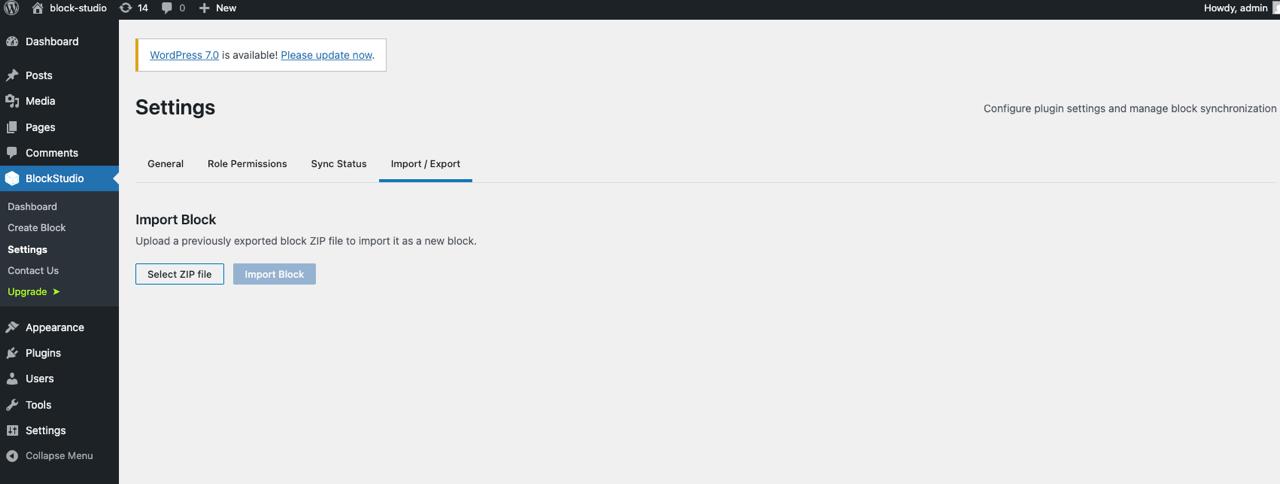
Import Options
Section titled “Import Options”| Option | Description |
|---|---|
| New block | Import as a new block |
| Update existing | Replace an existing block |
Importing Between Installations
Section titled “Importing Between Installations”To move a block from one WPBits Block Studio site to another:
- On the source site, export the block as ZIP
- On the destination site, go to WPBits Block Studio → Settings → Import / Export
- Upload the ZIP file
- The block appears in your dashboard
Troubleshooting
Section titled “Troubleshooting”Import Fails
Section titled “Import Fails”- Verify the ZIP is a valid WPBits Block Studio export
- Check for conflicts with existing blocks
- Make sure the destination is writable
Export Fails
Section titled “Export Fails”- Check file permissions
- Verify disk space is available
- Try downloading again